> ## Documentation Index
> Fetch the complete documentation index at: https://docs.lume.ai/llms.txt
> Use this file to discover all available pages before exploring further.
# Core Concepts
Understanding these foundational concepts will help you make the most of Lume's capabilities. This guide introduces the key components and how they work together.
## Project Basics
The input data you want to transform
The desired structure for your output data
### Source Data
Source data is any user-provided data that you want to interpret or transform. Lume currently supports CSV files, and you can upload multiple CSV files to work with. All data must be structured, meaning:
* The first row must contain column headers/names
* Each subsequent row must follow the same structure
* Data should be organized in a tabular format
* Each column should contain consistent data types
There are two types of source files you can work with:
1. **Source Data**: Your primary customer or business data that needs to be transformed
2. **Seed Data**: External or internal enhancement data that can be used to enrich your source data. This includes:
* Reference data (e.g., country codes, state abbreviations)
* Lookup tables
* Master data
* Any non-customer data that helps enhance your primary dataset
While Lume only requires a single record to generate mapping logic, providing larger data samples improves mapping accuracy through better pattern recognition.
Support for JSON and XML formats is coming soon! In the meantime, we recommend converting these files to CSV or reaching out to our support team for assistance.
Need support for additional data formats? Contact the Lume team for assistance.
```csv theme={null}
# customers.csv - Primary source data
customer_id,customer_name,industry_code,region_code
0018y000008hFqqAAE,Blue Sky Ventures LLC,IND001,REG01
0018y000008nrMrAAI,Green Acres Holdings LLC,IND002,REG02
0018y000008pQrStAAE,Sunset Technologies Inc,IND001,REG03
```
```csv theme={null}
# orders.csv - Additional source data
order_id,customer_id,order_date,order_amount,status
ORD001,0018y000008hFqqAAE,2024-01-15,1500.00,completed
ORD002,0018y000008hFqqAAE,2024-02-01,2300.00,pending
ORD003,0018y000008nrMrAAI,2024-01-20,950.00,completed
ORD004,0018y000008pQrStAAE,2024-02-05,3200.00,processing
```
```csv theme={null}
# industry_codes.csv - Seed data for enrichment
industry_code,industry_name,industry_category
IND001,Technology,Professional Services
IND002,Healthcare,Healthcare
IND003,Manufacturing,Industrial
```
### Target Schema
A target schema defines the desired output format for your transformed data. It uses YAML format to specify:
* Target Model Name
* Column Names
* Test Rules
* Business logic and descriptons
For more details on building target schemas, see our [Building Target Schemas](/pages/documentation/project_guides/building_target_schema) guide.
```yaml theme={null}
models:
- name: customers
description: "Customer records and metadata"
columns:
- name: customer_id
description: "Unique identifier for each customer"
tests:
- not_null
- unique
- name: customer_name
description: "Full legal name of the customer"
tests:
- not_null
- name: customer_type
description: "Type of customer (e.g., individual, business)"
tests:
- accepted_values:
values: ["individual", "business"]
- name: orders
description: "All customer orders"
columns:
- name: order_id
description: "Primary key for the order"
tests:
- not_null
- unique
- name: customer_id
description: "Foreign key to customers"
tests:
- not_null
- relationships:
to: ref('customers')
field: customer_id
- name: status
description: "Current status of the order"
tests:
- accepted_values:
values: ["pending", "shipped", "delivered", "cancelled"]
- name: payments
description: "Payments made toward orders"
columns:
- name: payment_id
description: "Unique ID for the payment record"
tests:
- not_null
- unique
- name: order_id
description: "Associated order ID"
tests:
- relationships:
to: ref('orders')
field: order_id
- name: payment_method
description: "Method of payment (e.g., credit card, PayPal)"
tests:
- accepted_values:
values: ["credit_card", "paypal", "bank_transfer"]
```
## Key Components
Orchestrate your data transformation journey
Manage versions of a Project
Manage files for a given project
AI-powered data transformation
Execute and monitor your transformations
Track table and column lineage
Easily view the transformed data
### Projects
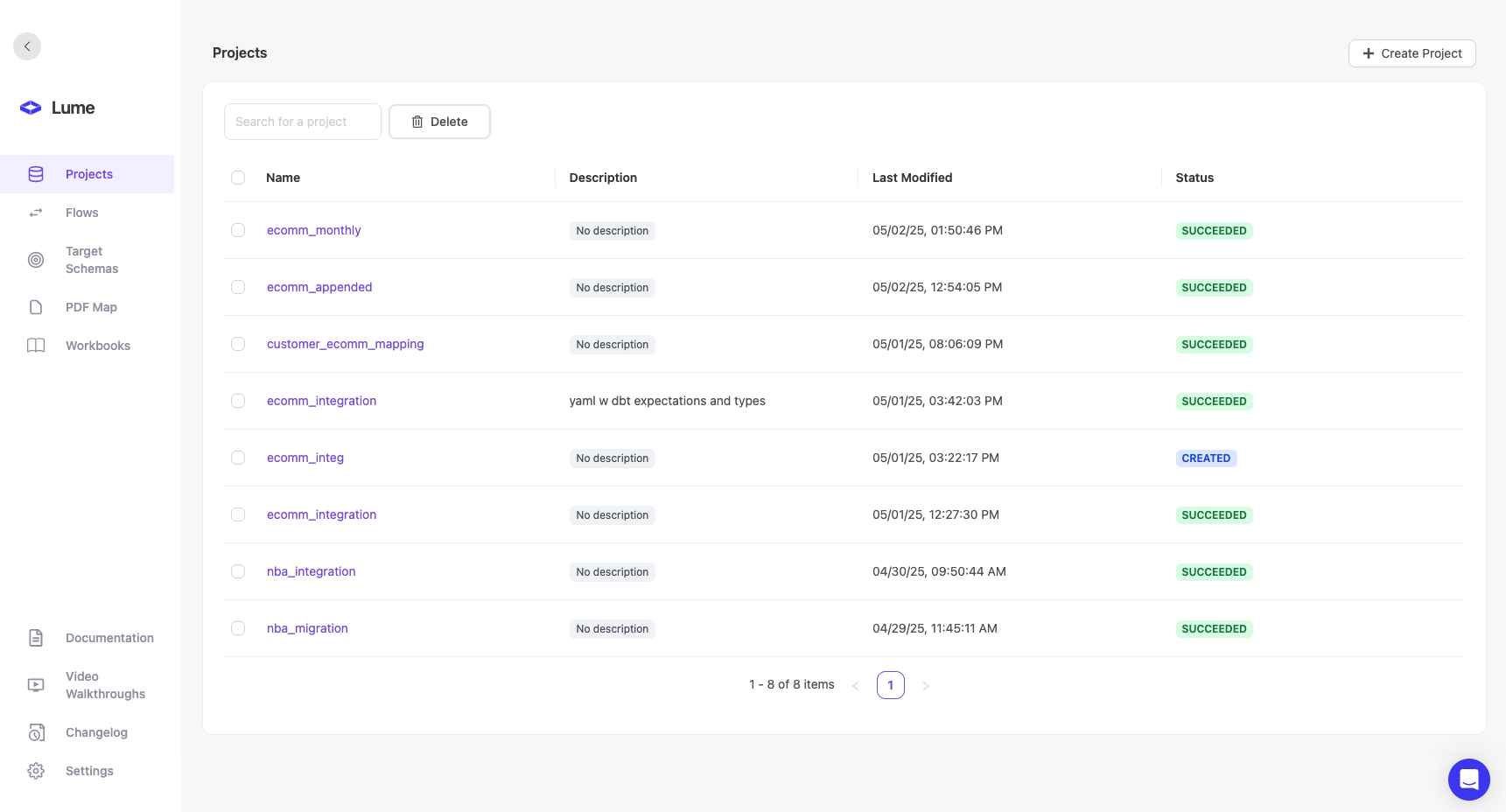
A Project is your complete data transformation pipeline. It can:
* Accept multiple file inputs (sources and seeds)
* Include multiple transformation steps
* Join and combine data
* Produce final mapped output
Projects help you organize related transformations into logical sequences. Complex transformations can be broken down into manageable steps, making them easier to maintain and modify.
 ### Project Versions
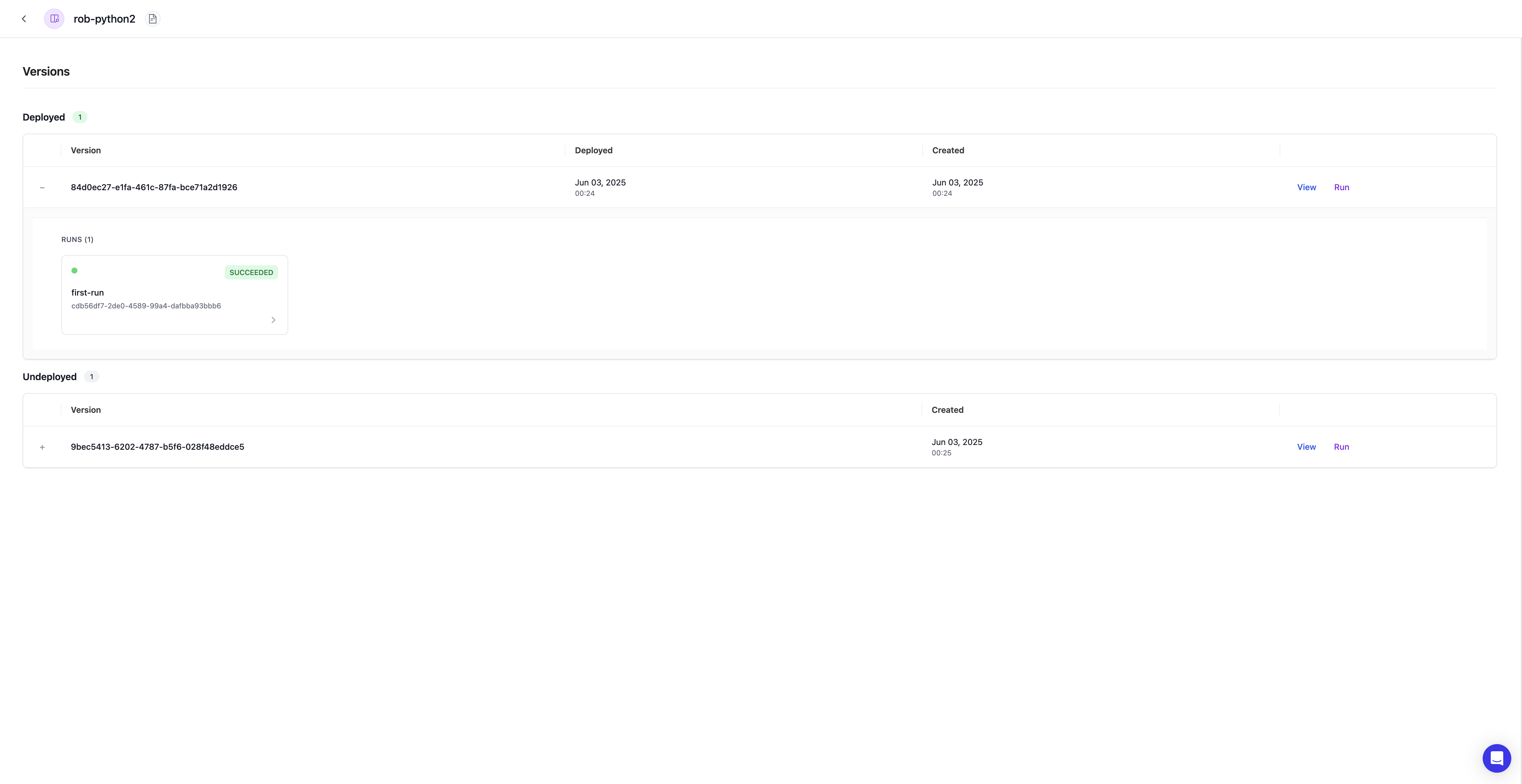
The project versions is a place to quickly manage different versions of your project and the runs associated with each version. Lume will automatically snapshot versions of the project as edits are made that result in changes to the code. These changes include:
* Code
* Source Schema
* Target Schema
### Project Versions
The project versions is a place to quickly manage different versions of your project and the runs associated with each version. Lume will automatically snapshot versions of the project as edits are made that result in changes to the code. These changes include:
* Code
* Source Schema
* Target Schema
 ### File Manager
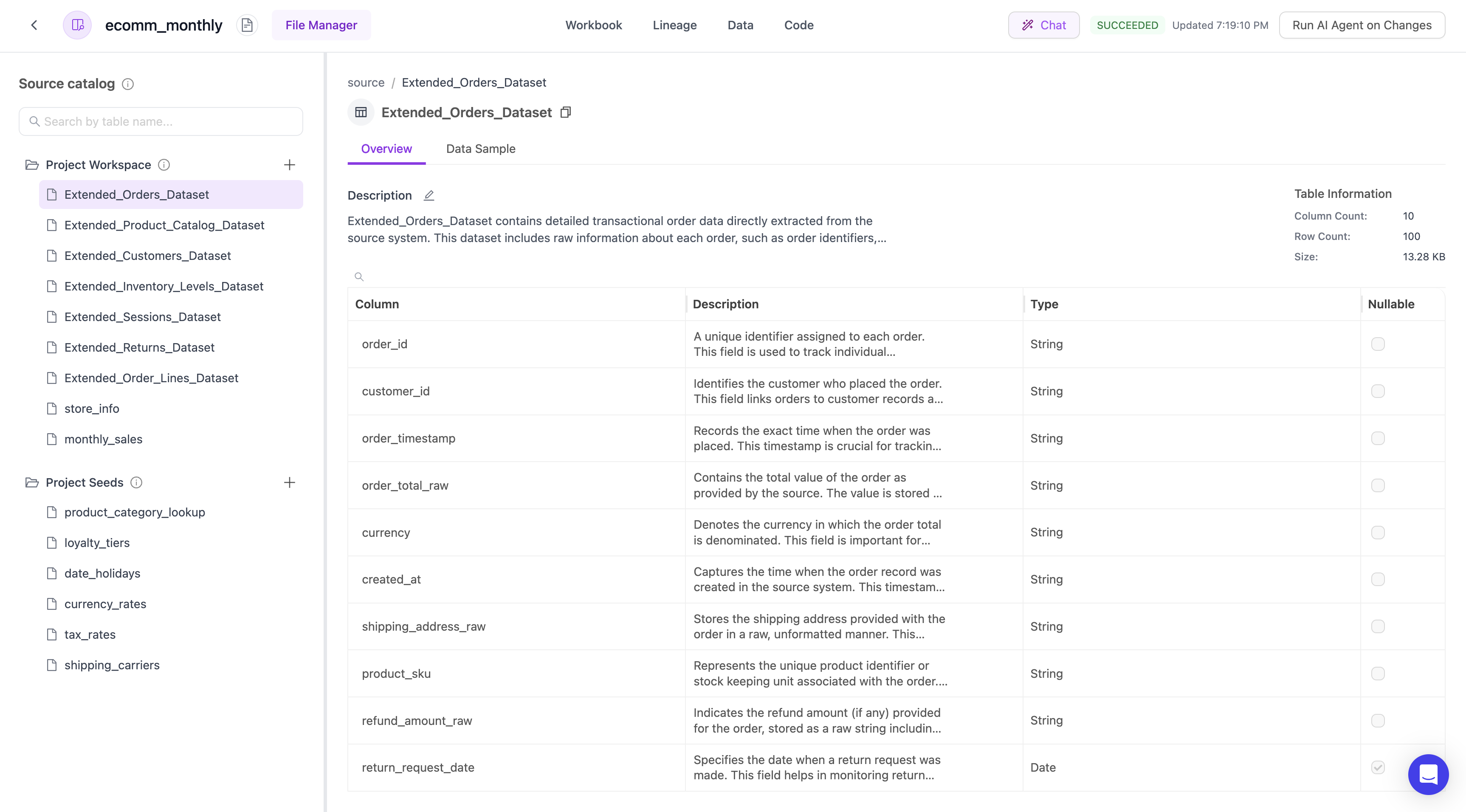
The file manager is a place to manage and access your uploaded data. It can:
* View metadata per model on row count, column count, and file size.
* Insert, upsert, and remove source tables and source seed files.
* Add additional context to the source table description to guide the AI generation.
* Provide column level metadata around data type, nullability, and additional notes.
### File Manager
The file manager is a place to manage and access your uploaded data. It can:
* View metadata per model on row count, column count, and file size.
* Insert, upsert, and remove source tables and source seed files.
* Add additional context to the source table description to guide the AI generation.
* Provide column level metadata around data type, nullability, and additional notes.
 ### Workbook
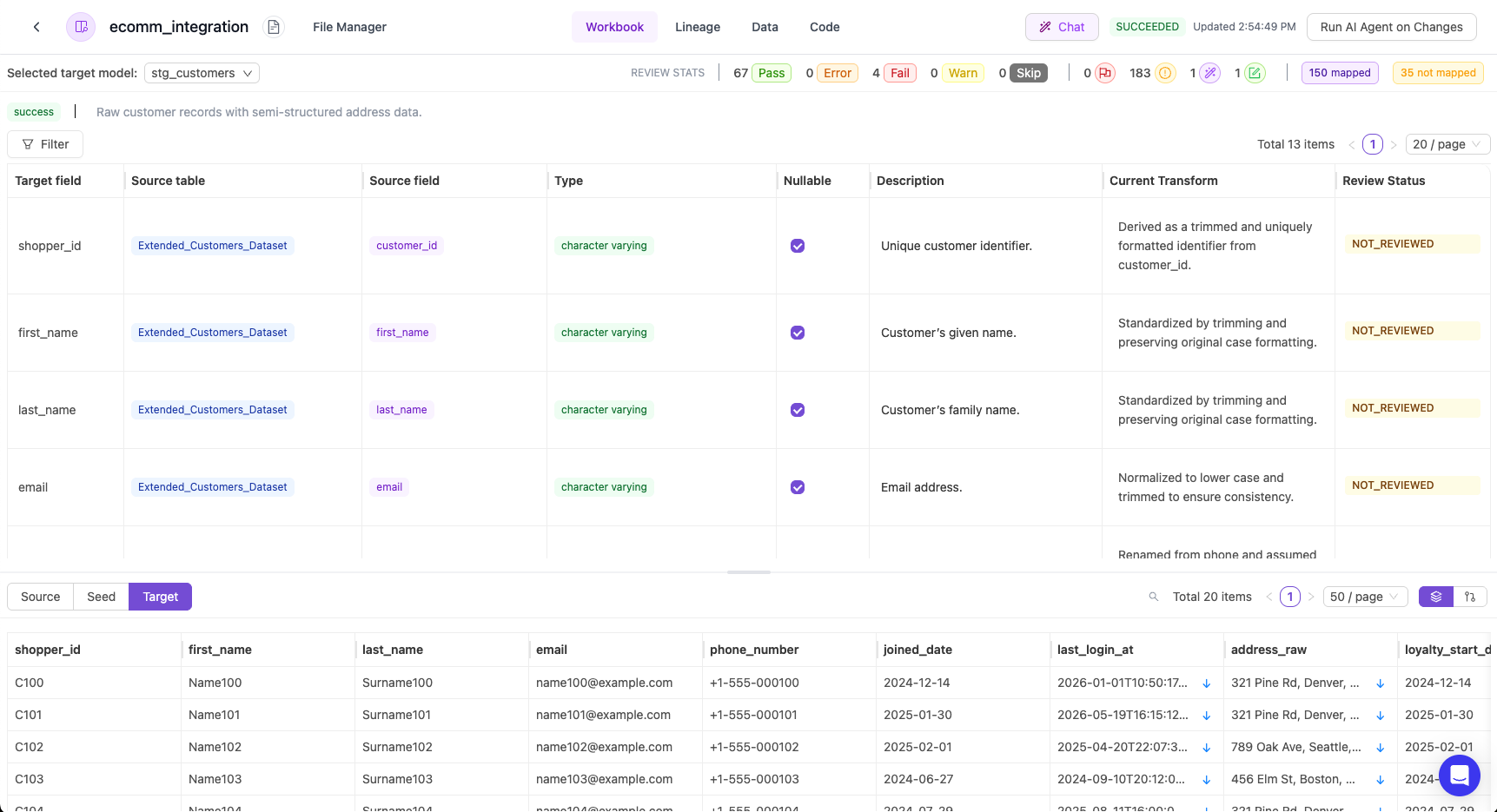
Lume generates a spreadsheet style artifact called a Workbook, but you don't need to be a programmer to use it effectively. The platform provides:
**Core Concepts:**
* Data lineage showing how fields map between source and target
* Sample data previews for curosry visual inspections
* Natural language explanations of the transformation logic
* Interactive edit interface for adjusting or providing additional mapping context
* AI Chat to explore daata nd gain a deeper understanding
### Workbook
Lume generates a spreadsheet style artifact called a Workbook, but you don't need to be a programmer to use it effectively. The platform provides:
**Core Concepts:**
* Data lineage showing how fields map between source and target
* Sample data previews for curosry visual inspections
* Natural language explanations of the transformation logic
* Interactive edit interface for adjusting or providing additional mapping context
* AI Chat to explore daata nd gain a deeper understanding
 ### Code
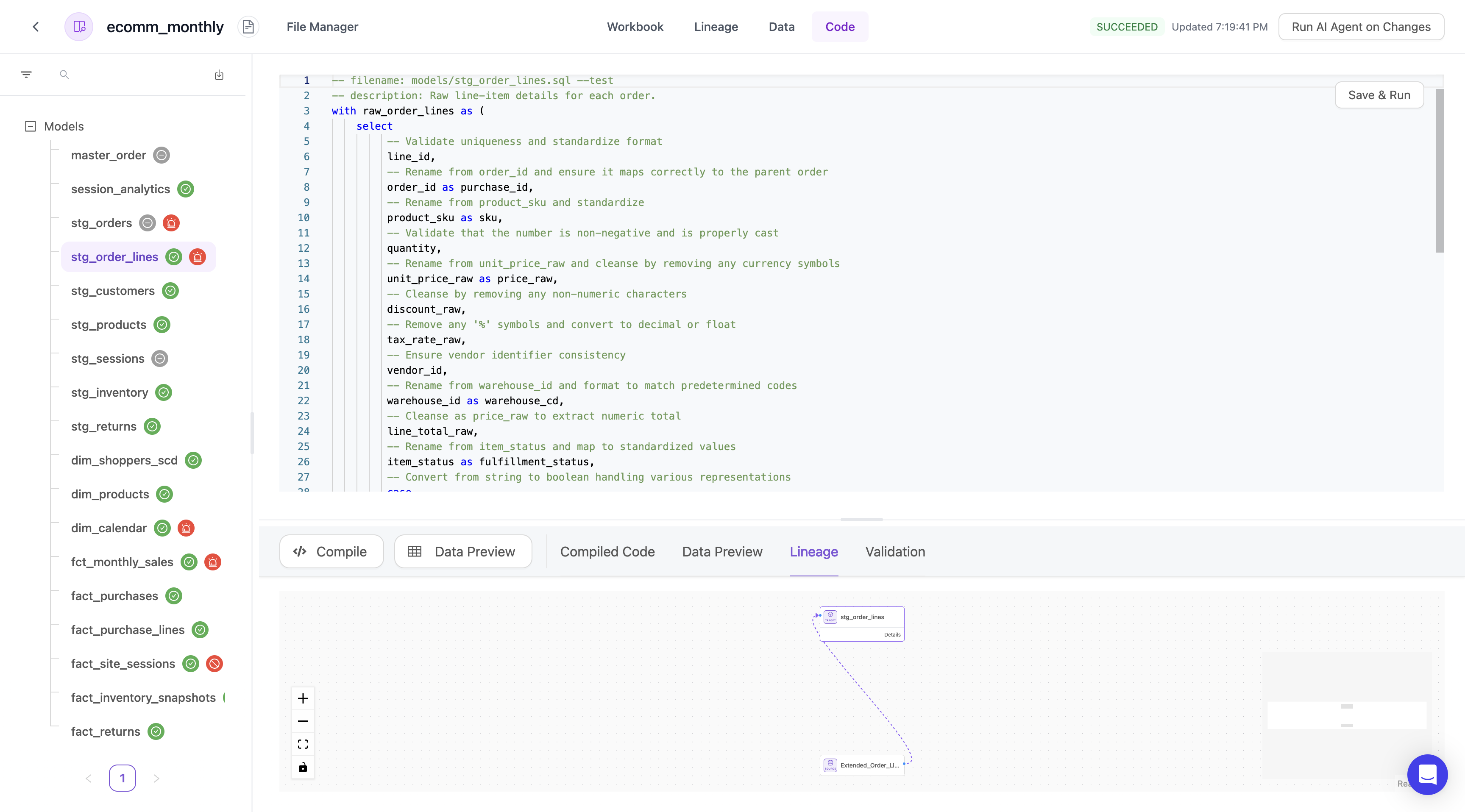
Code represents the section to gain insights about the testing validation and sql models produced:
* Compiled Code
* Data Preview
* Lineage
* Validation
### Code
Code represents the section to gain insights about the testing validation and sql models produced:
* Compiled Code
* Data Preview
* Lineage
* Validation
 ### Lineage
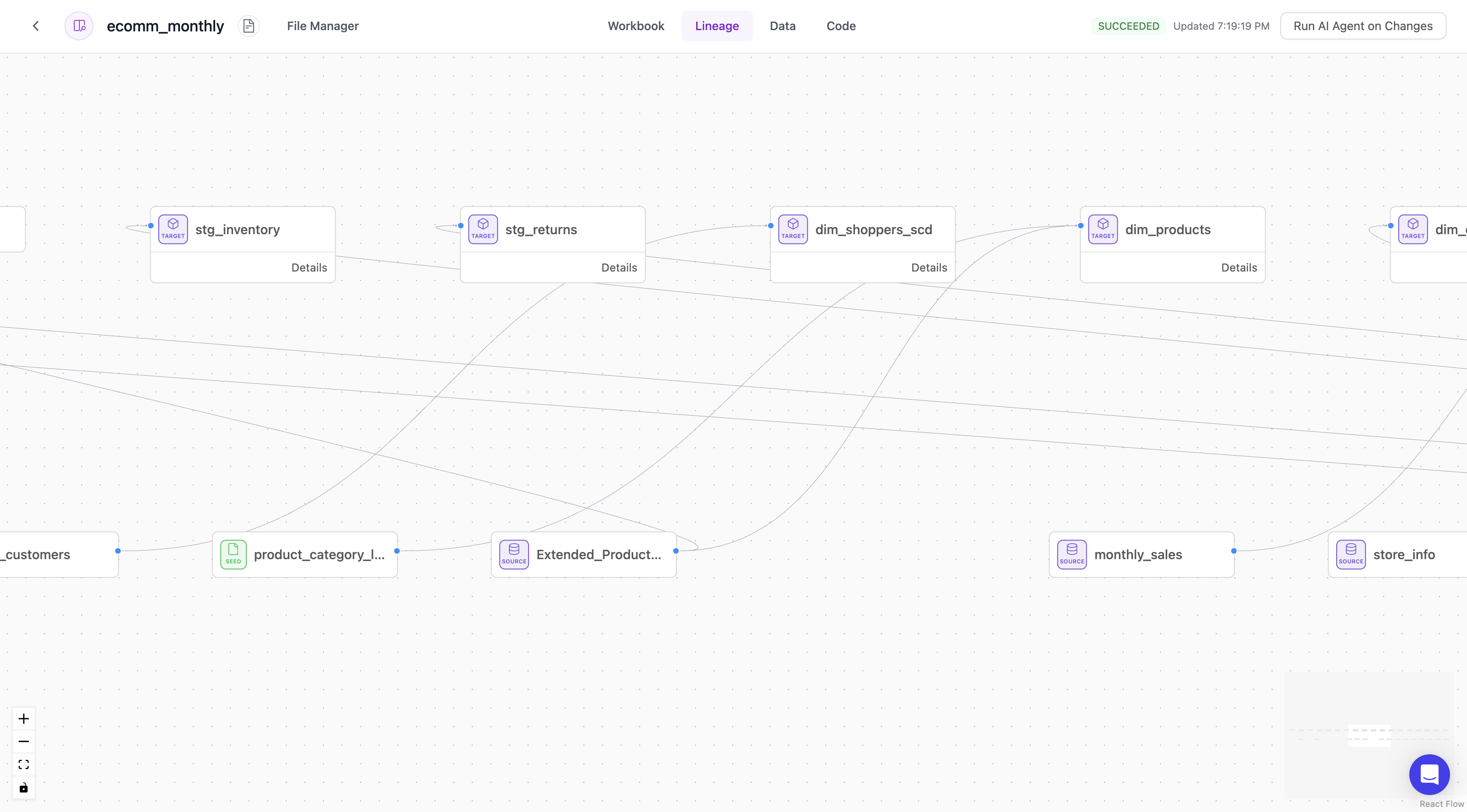
A visual representation of the table and column level lineage to better understand the relationships between the transformations that Lume's AI engine created.
### Lineage
A visual representation of the table and column level lineage to better understand the relationships between the transformations that Lume's AI engine created.
 ### Data
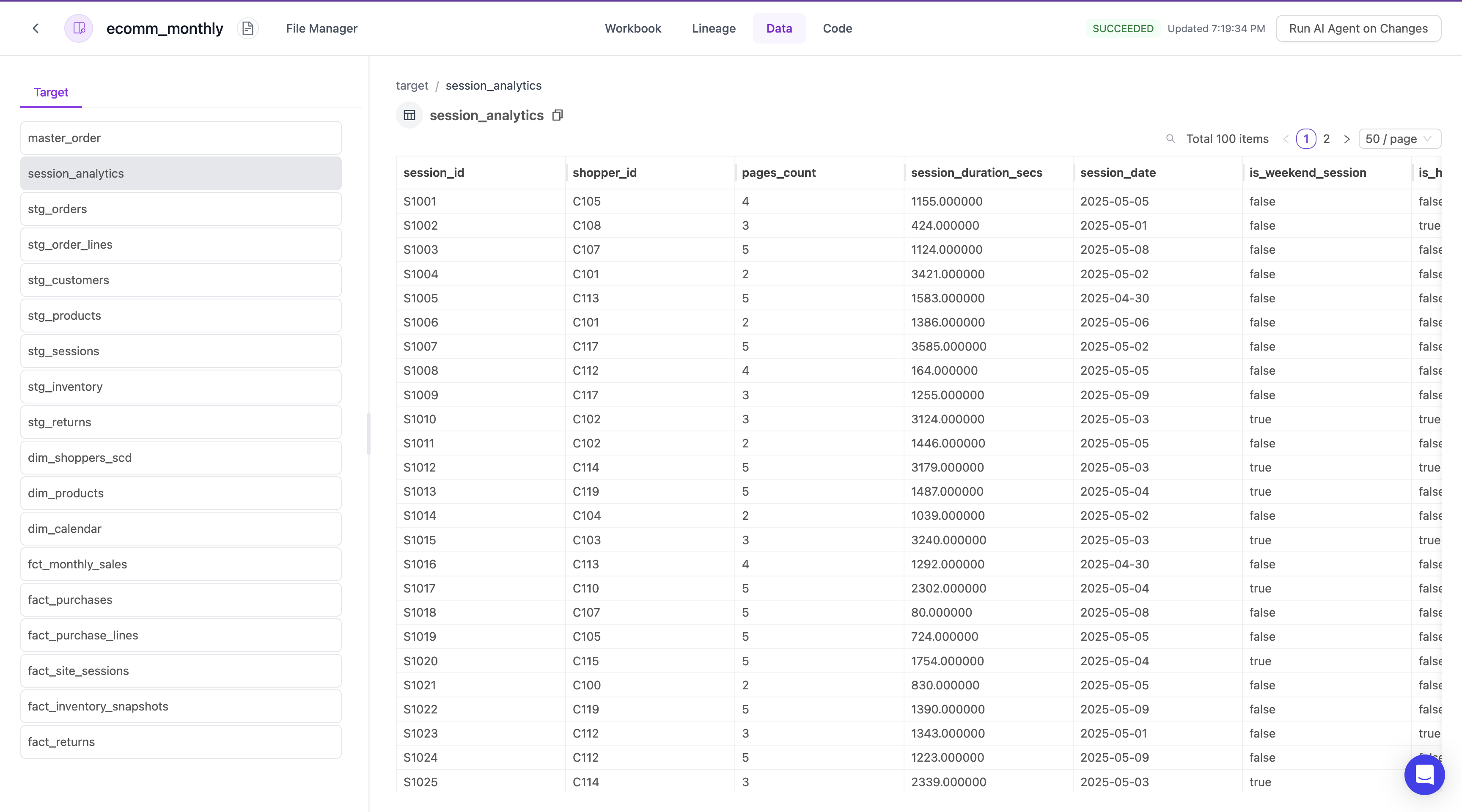
Lume provides comprehensive target data review. You can quickly scan the set of produced data to ensure it passes a quick visual inspection.
### Data
Lume provides comprehensive target data review. You can quickly scan the set of produced data to ensure it passes a quick visual inspection.